Connect Claude or ChatGPT
Connect Claude, ChatGPT or another AI assistant to OKiDO, so it can read and update your work for you.
Who can do this: Everyone in the organization
OKiDO works with AI assistants that support MCP (Model Context Protocol), such as Claude and ChatGPT. Once connected, you can ask the assistant to create tasks, check on projects or start a process, and it works in OKiDO with your own permissions.
Copy the server address
- Open the account menu (the person icon at the top right) and choose Settings.
- Choose the AI assistants tab.
- Under MCP server URL, choose Copy.
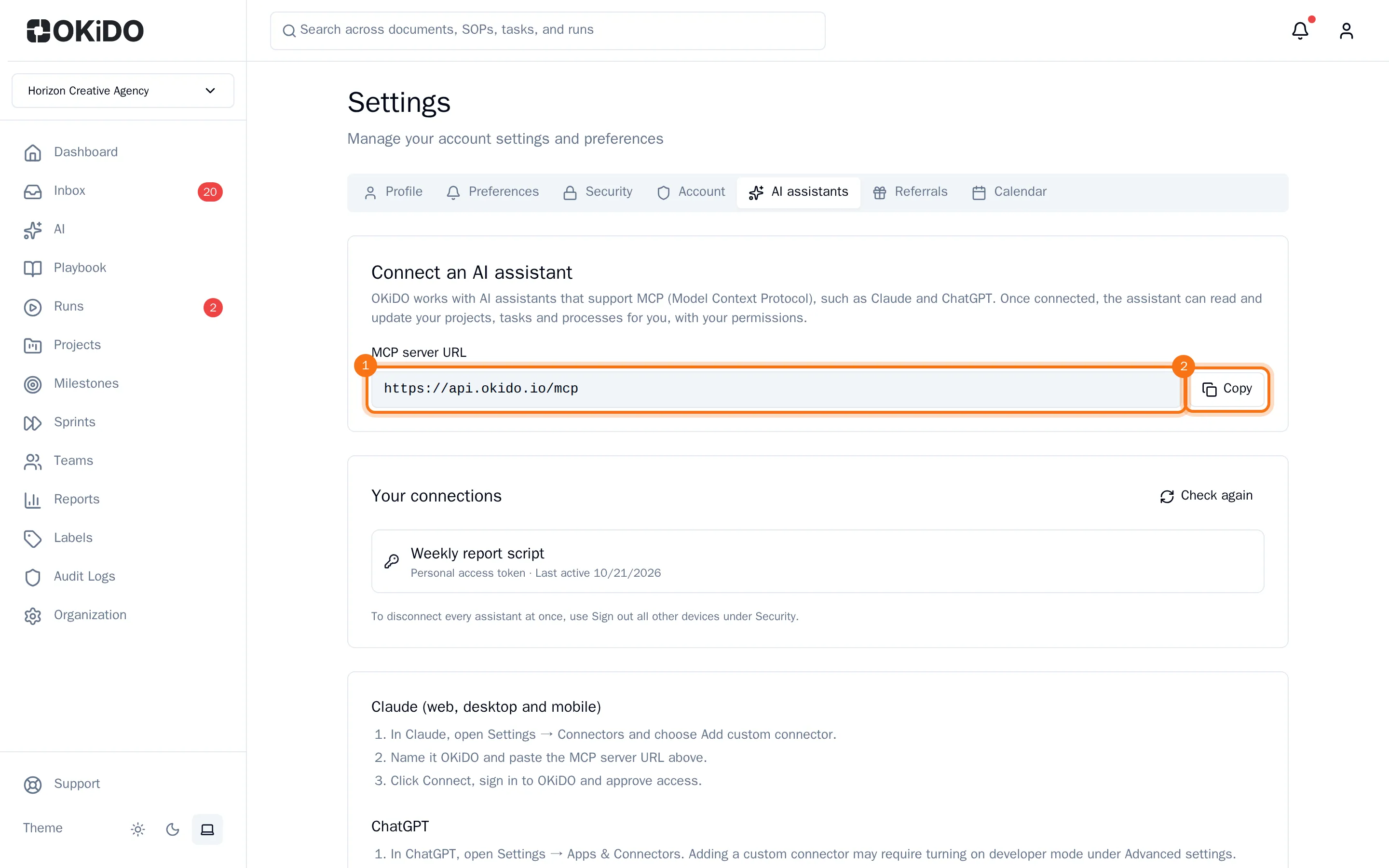
Lower on the tab, OKiDO shows the steps for each assistant. In short:
- Claude (web, desktop and mobile): in Claude's settings, add a custom connector named OKiDO, paste the address and choose Connect.
- ChatGPT: in ChatGPT's settings, create a connector, paste the address and choose OAuth as the authentication. You may first have to turn on developer mode in ChatGPT's advanced settings.
- Claude Code and other MCP clients: add OKiDO as a remote (HTTP) MCP server with the same address. For Claude Code, copy the ready-made command from the tab.
Sign in and approve
The assistant opens OKiDO in your browser. Sign in, if you are not signed in yet, and approve the access. You are then back in the assistant, connected.
Check your connections
Under Your connections, the tab lists every assistant connected to your account, and when each one was last active. A personal access token that a script or an assistant uses shows here too (see Create a personal access token). Just connected? Choose Check again to update the list.
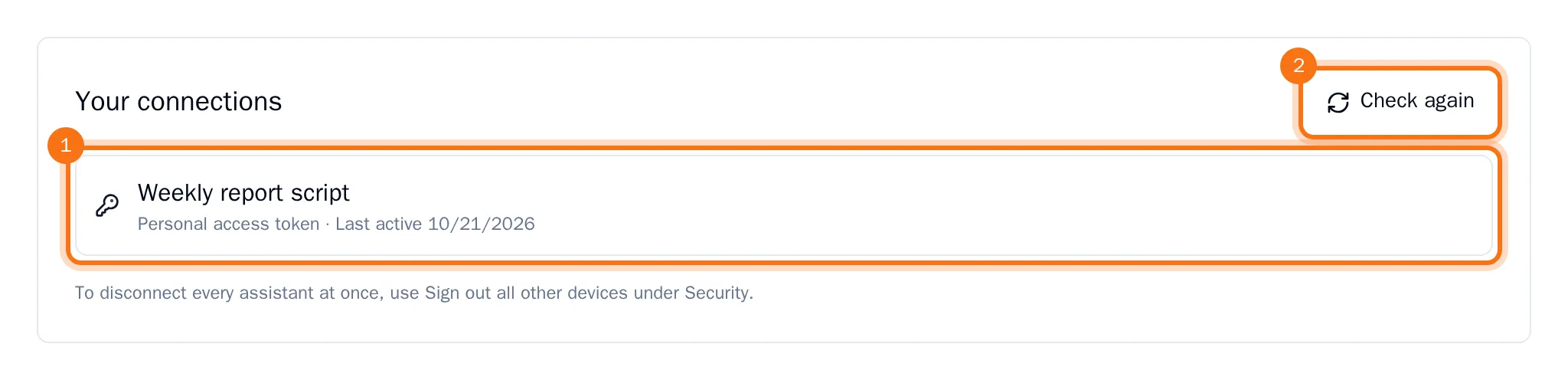
To disconnect every assistant at once, choose Sign out all other devices on the Security tab (see Change your password and sign out other devices).