Change your password and sign out other devices
Change your password, or sign out every other device and connected AI assistant at once.
Who can do this: Everyone in the organization
Change your password from time to time, and right away if you think someone else knows it. Lost a phone or signed in on a shared computer? Sign out all your other devices in one go.
Change your password
- Open the account menu (the person icon at the top right) and choose Settings.
- Choose the Security tab.
- Enter your Current Password, then your New Password (at least 8 characters) and enter it again under Confirm New Password.
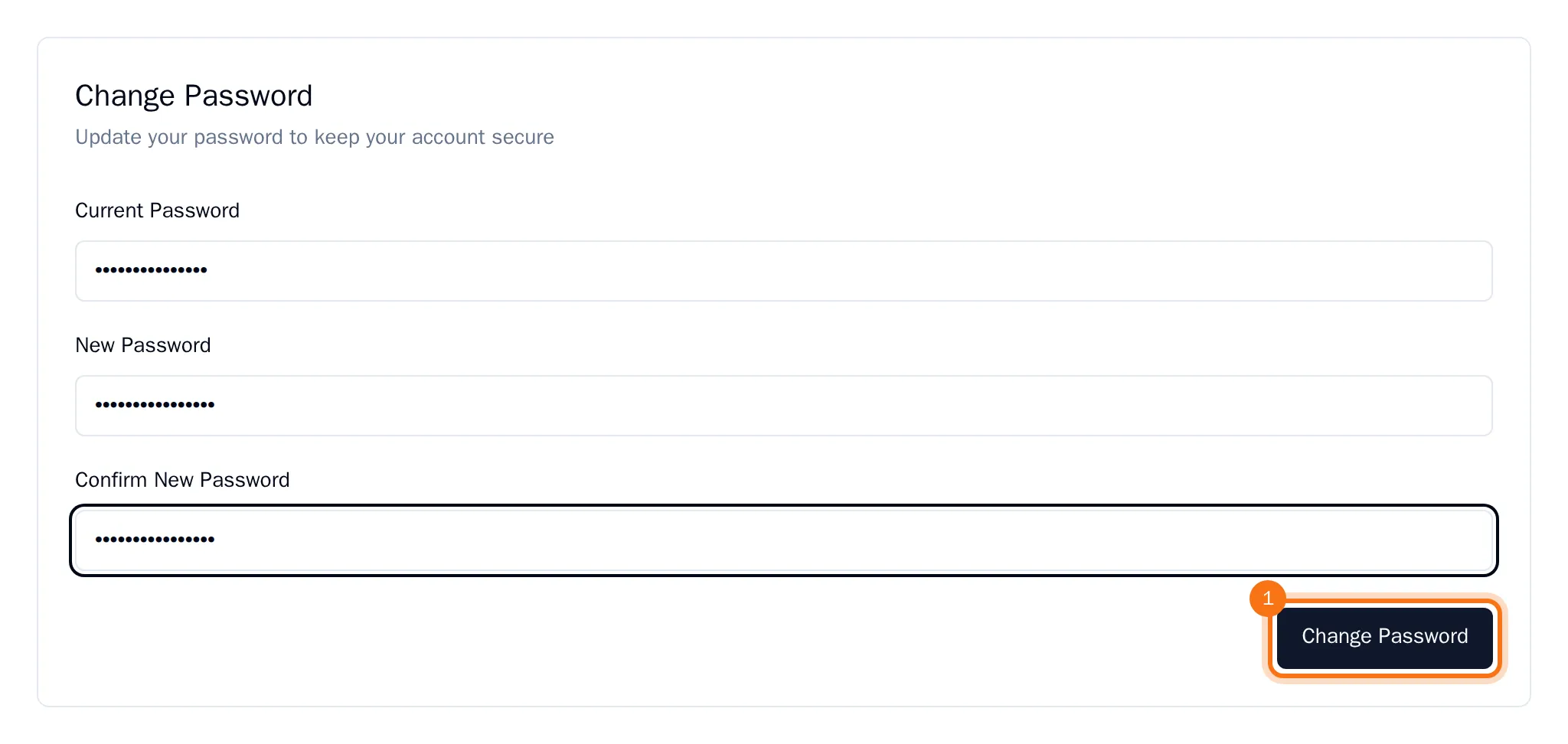
- Choose Change Password.
OKiDO confirms the change, and you stay signed in on this device. To keep your account safe, the change also signs you out on every other device, disconnects your AI assistants and deletes your personal access tokens. Sign in there again with your new password, and reconnect your assistants.
Tip: Forgot your current password? Sign out and use Forgot password? on the sign-in page (see Reset a forgotten password).
Sign out all other devices
- On the Security tab, go to Active Sessions.
- Choose Sign out all other devices.
- Confirm with Sign out all other devices.
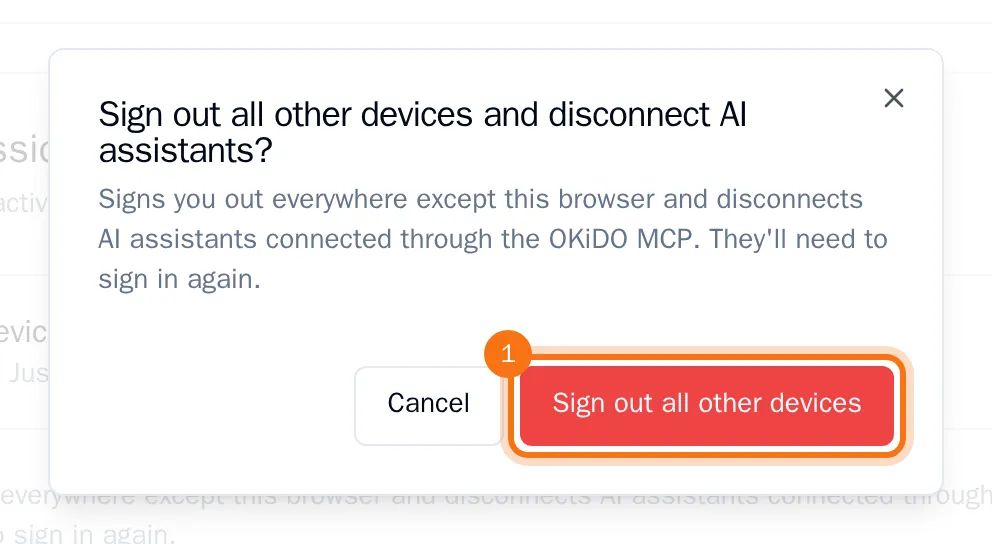
Every other browser, phone and app where you were signed in is signed out, AI assistants connected through the OKiDO MCP are disconnected, and your personal access tokens are deleted. You stay signed in on this device; everywhere else you sign in again with your current password.