Chat with AI
Ask the AI about your work, bring in an agent with @, point it at a project or task with #, and approve the changes it wants to make.
Who can do this: Everyone in the organization
AI Chat answers questions about your projects, tasks and runs, drafts text for you and can make changes in OKiDO for you. Copilot, your organization's AI, answers by default; mention one of your agents to ask it directly. When the AI wants to make a change that needs approval, such as creating a project, it stops and waits for a decision first.
Ask a question
- In the menu on the left, choose AI. AI Chat opens, with your earlier chats on the left.
- Choose New Chat. When you already have chats, choose + next to AI Chat instead.
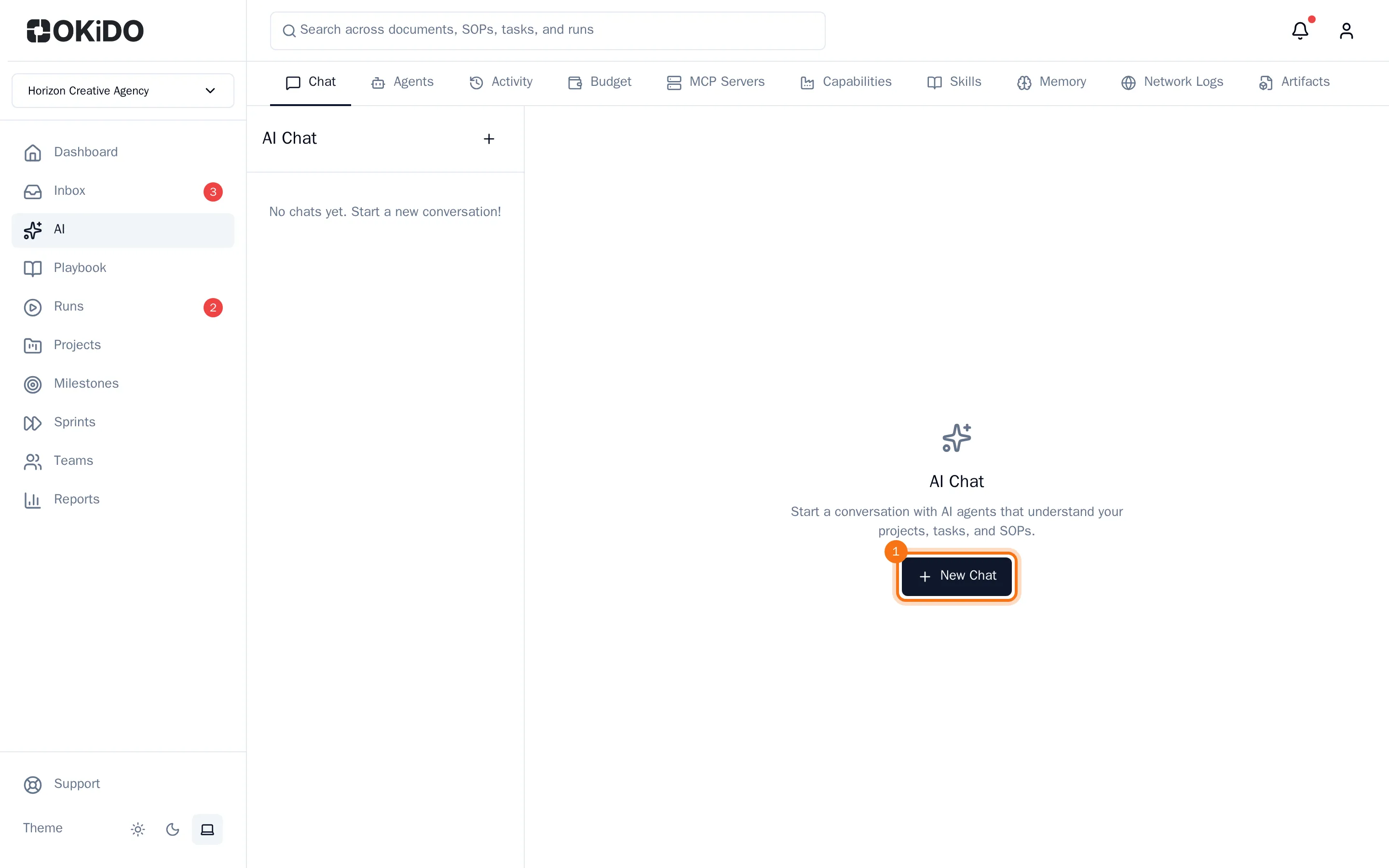
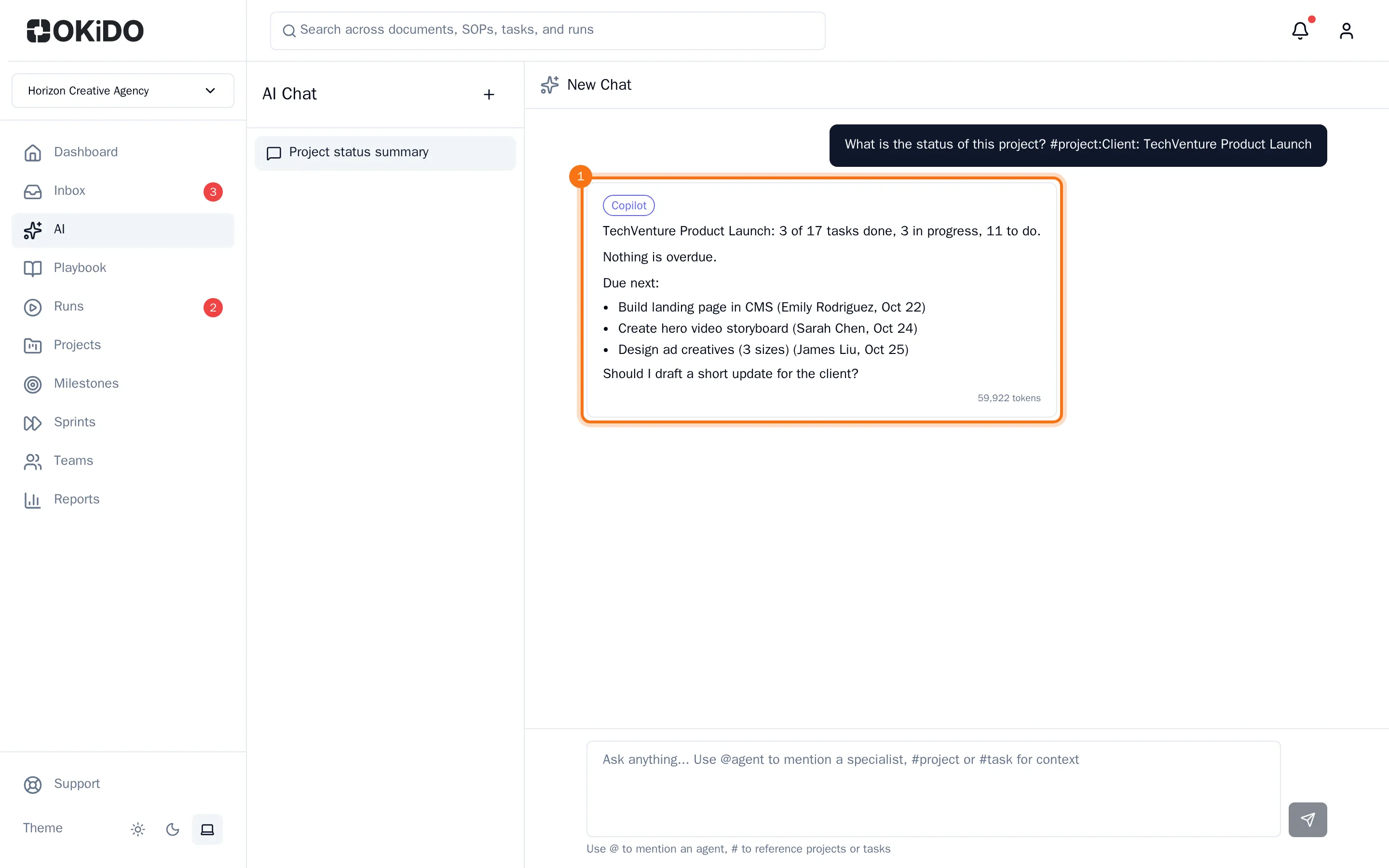
- Type your question. To point the AI at a project, type # and choose the project from the list. For a task, type #task: and the first letters of its title.
- Press Enter.
The answer appears under your question, with the name of the agent that answered. The chat gets a title in the list on the left, so you can find it again later.
Ask one of your agents
- In the message box, type @ and choose an agent from the list, for example @copywriter-bot.
- Type what you need and press Enter.
That agent answers instead of Copilot, and its name is shown above the answer.
Approve or reject a change
When the AI wants to do something that needs approval, the chat shows the request and the label Approval needed. The AI waits until someone decides. Owners and admins make that decision.
- Read what the AI wants to do and the details below it.
- Choose Approve and continue. The AI makes the change and carries on with your request.
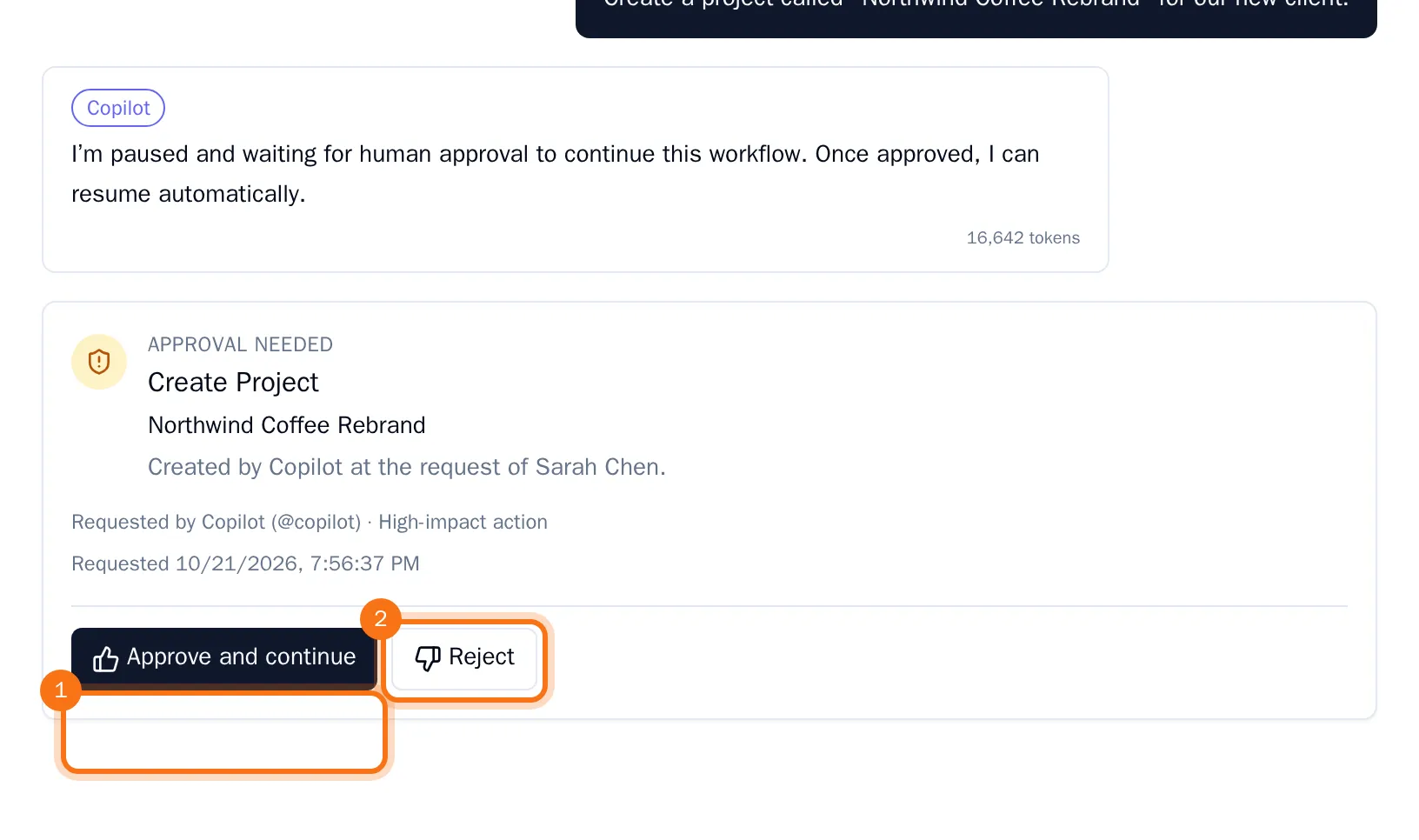
To stop it instead, choose Reject, tell the AI why if you like, and choose Confirm rejection. The AI gets your reason and does not make the change.
Tip: To rename or delete a chat, point at it in the list on the left and choose the pencil or the bin.